
We are changing the login process for FIFA Connect and FCMS from 2026 onwards. This update will enhance platform security, reduce password fatigue from frequent password changes, minimise the risk of credential reuse, and provide a more secure access method through Multi-Factor Authentication (MFA).
This guide walks users through signing in for the first time using Microsoft Azure Single Sign-On (SSO), also known as Microsoft Entra ID.
Users will require the following:
• An email address associated with their FIFA Connect and/or FCMS access
• Access to a secondary authentication method, such as:
- Mobile phone for SMS or voice calls
- Microsoft Authenticator App (recommended)
- A modern web browser, Microsoft Edge is recommended but not mandatory
Step by Step - First Time Login
1. Go to the relevant FIFA Connect sign-in page associated with your organisation.
2. Enter the email address associated with your FIFA Connect and/or FCMS access
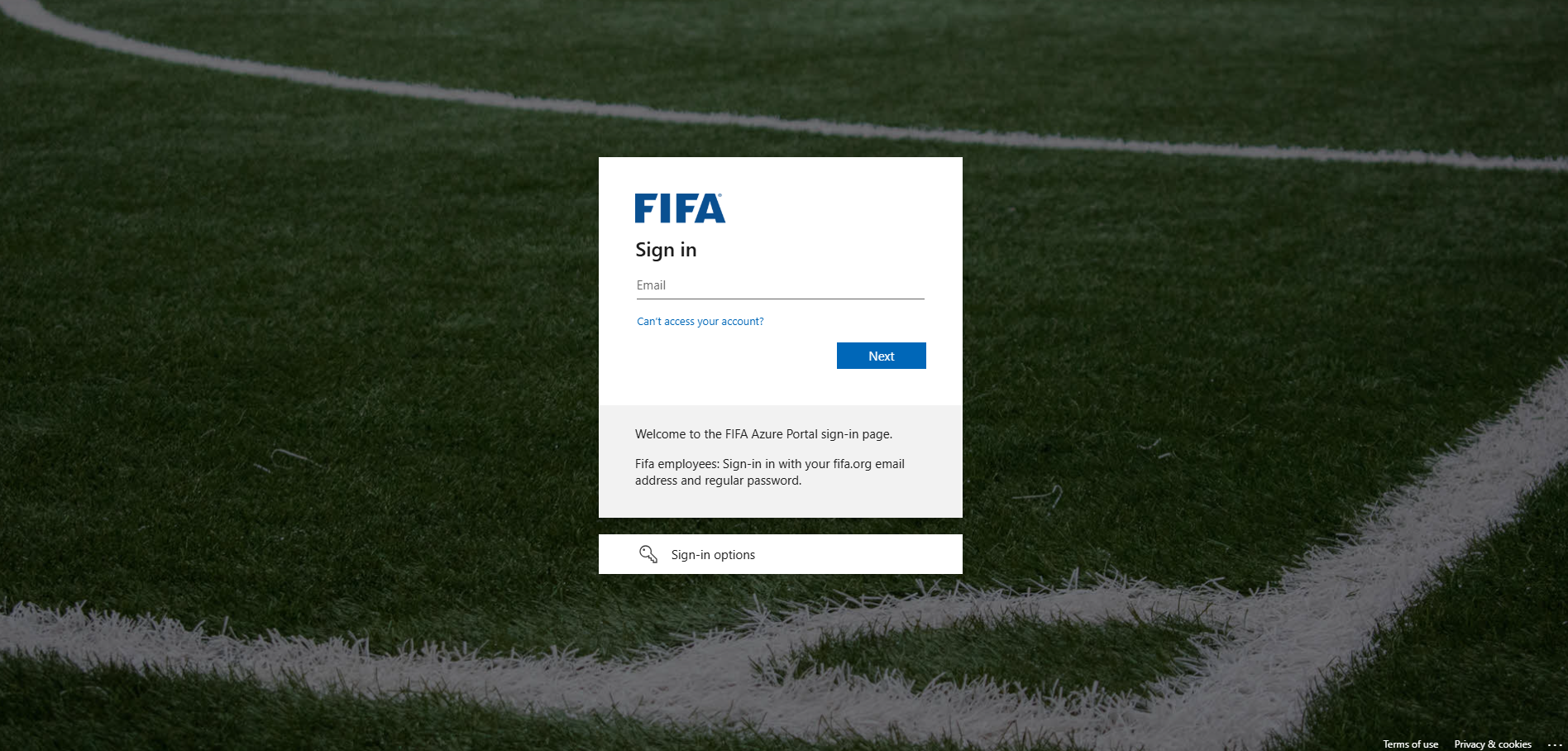
3. Enter your credentials:
- Enter your email address.
4. A password reset email will be sent to your registered email address. A one-time code will also be provided for verification.
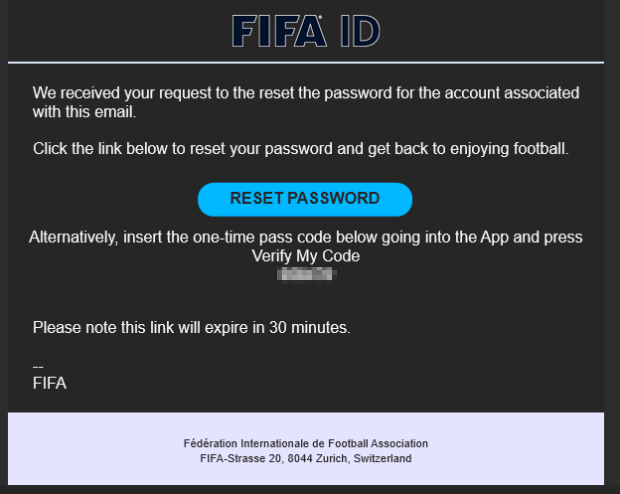
5. Set up Multi-Factor Authentication (MFA):
- MFA setup is required during the first login. Users may see a prompt such as “More information required” or be directed to configure security methods.
- Users can select their preferred authentication method.
Recommended option:
- Microsoft Authenticator App
- Download the Microsoft Authenticator App from the App Store or Google Play

- Follow the prompts to add your account by scanning the QR code or entering the setup code
- Approve the test notification or enter the verification code
Alternative options:
- Phone number for SMS or voice call verification
- Email verification using a one-time time passcode
Once completed, click “Next” or “Done”.
6. Review Permissions / Consent (if applicable):
Users may see a screen requesting permission for the application to access basic account information. Review the permissions and click “Accept” or “Yes”. This usually only appears during the first login.
7. Modify Authentication Preferences:
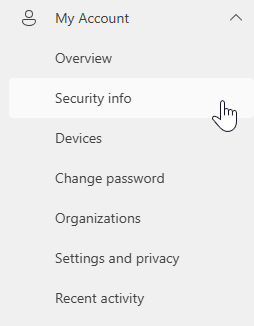
If users wish to change their preferred authentication method in future, they can do so by going to: https://myapps.fifa.org/
Then select:
“My Account” → “Security Info”
After First Time Login
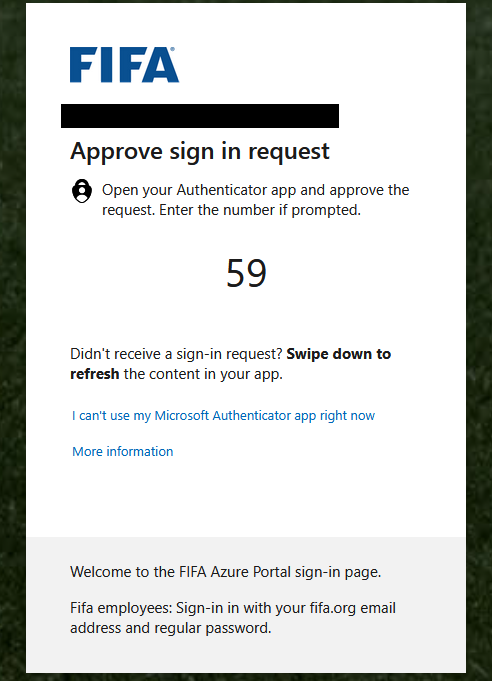
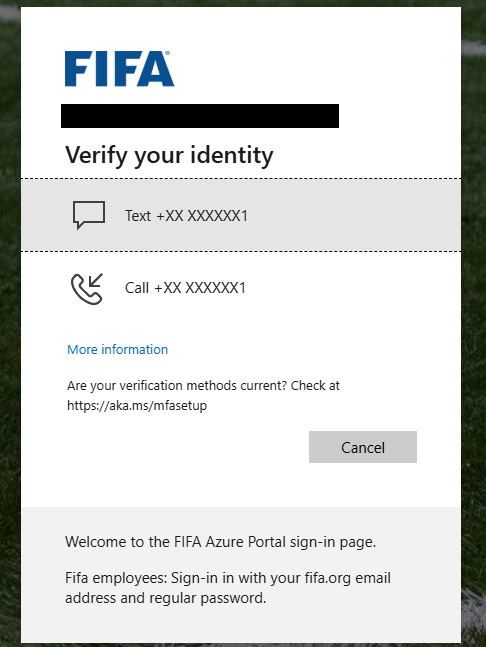
 Once the authentication has been successfully verified, access to FIFA Connect and/or FCMS will be granted.
YouTube Video for this process can also be found here