
This guide explains how a new user can create an account and set up Single Sign On (SSO) and Multi-Factor Authentication (MFA) for the first time before accessing FIFA Connect or FCMS. This guide is intended for users who do not already have an existing FIFA Connect or FCMS account.

Therefore it is no longer required to reach out to Genius Sports Support team asking them to add new users to the Microsoft Single Sign On User List, it can now be done by the individual users themselves.
Step 1: Create an account
Open the FIFA Connect or FCMS website provided by your Member Association.
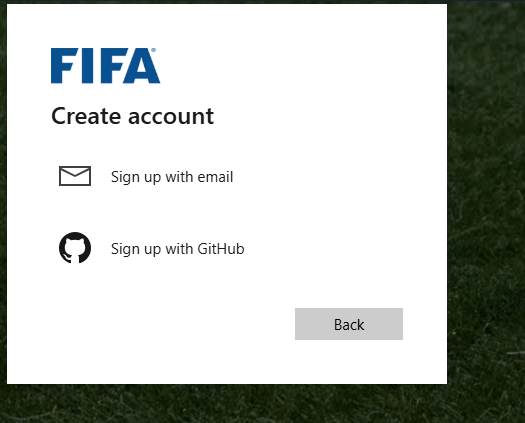
Select Create account, then choose:
Sign up with email
Enter the email address you want to use to log in. Then click the Next button.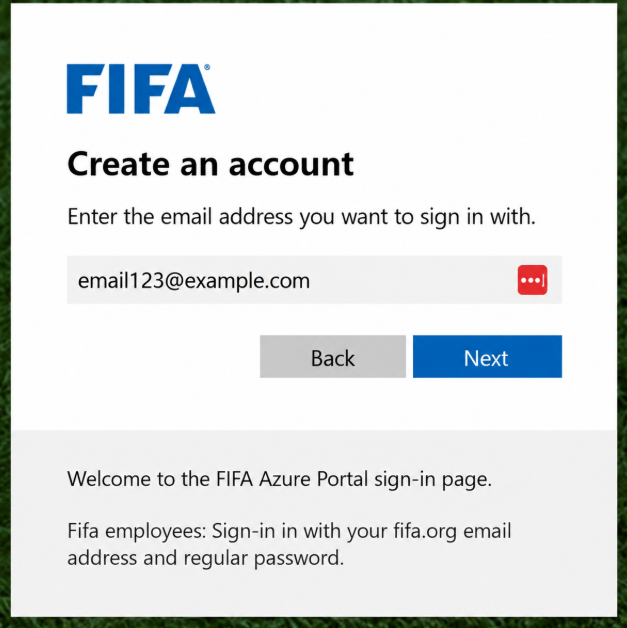
Step 2: Verify your email address
Enter your email address.
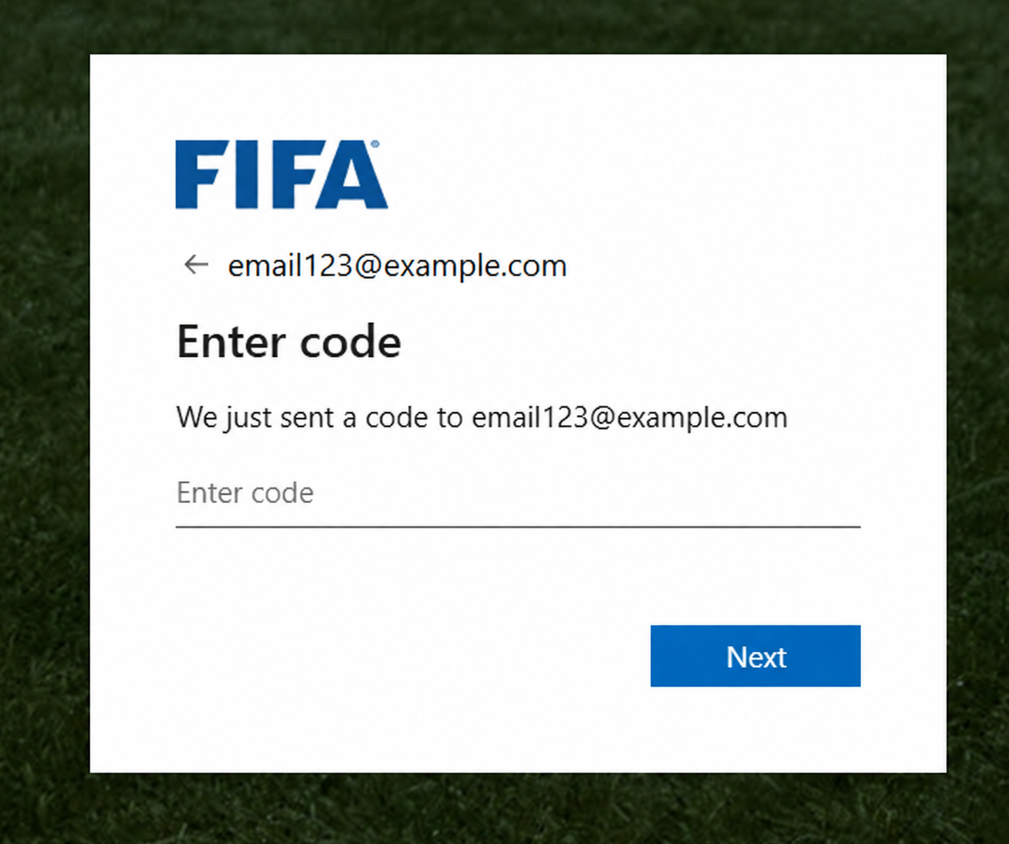
A verification code will be sent to the email address you entered.
Enter the verification code and select Next.
Step 3: Accept the requested permissions
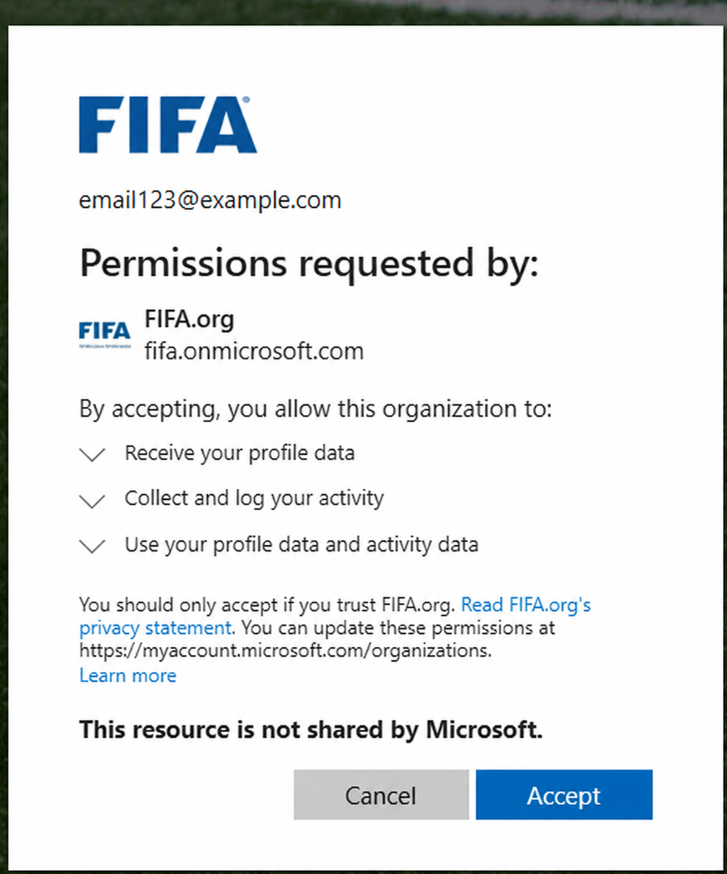
You may be asked to allow FIFA.org to access basic information required for your account.
Review the permissions and select Accept to continue.
Step 4: Add your account details
Check that your email address is correct.
Complete the following required information and click Continue.
- Given Name
- Surname
- System
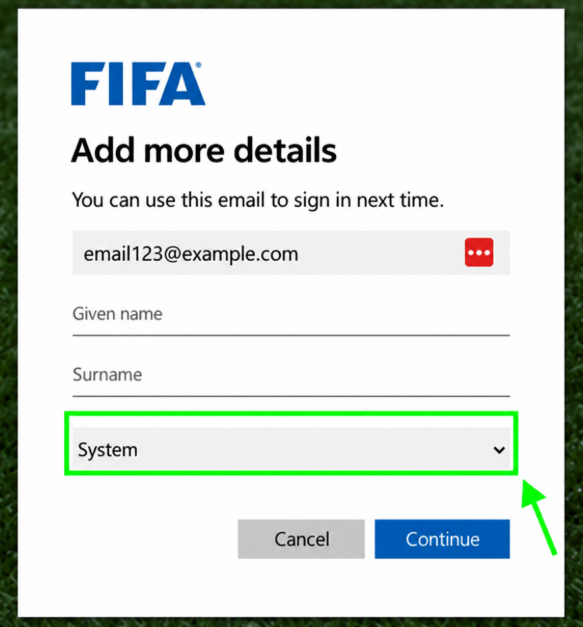
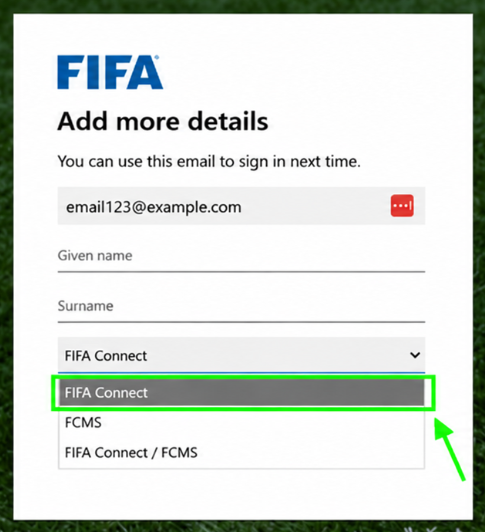
If you only use FIFA Connect, please select the corresponding option.
If you are using FCMS on its own, please select the corresponding option.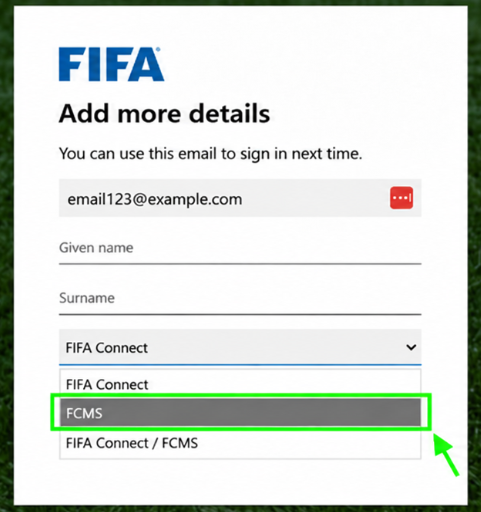
If you use FCP and FCMS, please make your selection accordingly.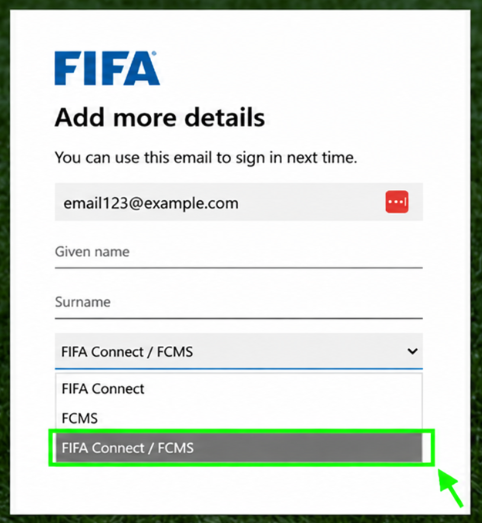
Step 5: Set up Multi-Factor Authentication
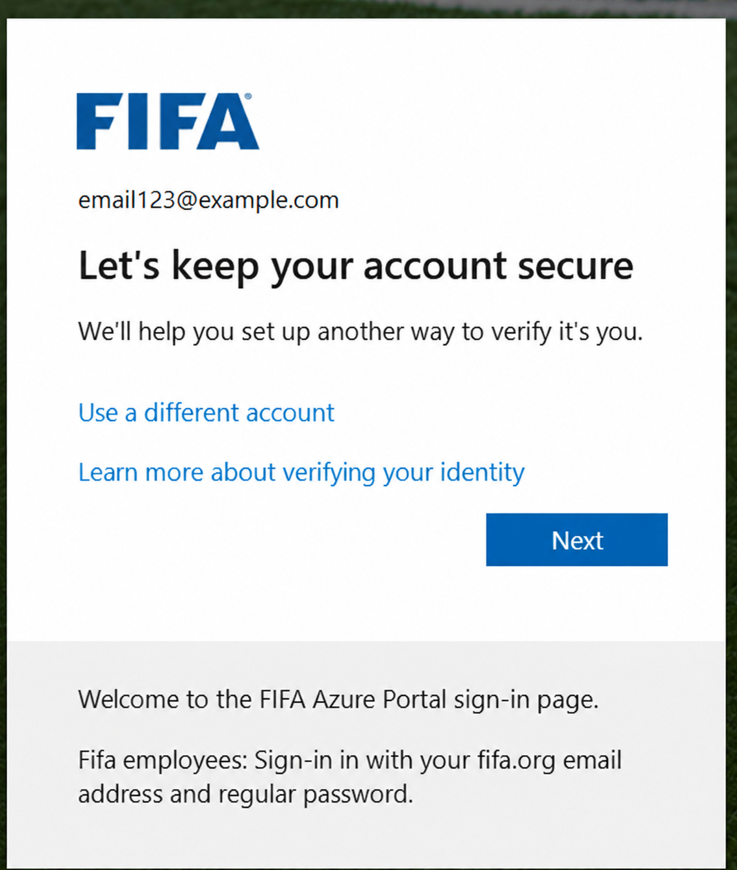
After creating your account, you will be asked to set up an additional verification method to keep your account secure.
Select Next to begin the MFA setup.
Step 6: Install Microsoft Authenticator
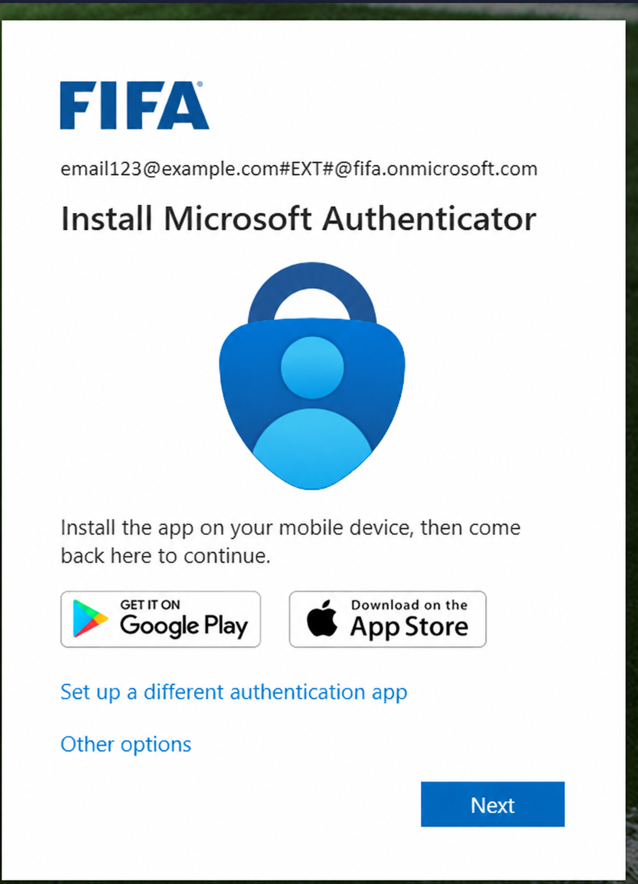
You will be prompted to install the Microsoft Authenticator app on your mobile device.
Download Microsoft Authenticator from the Google Play Store or Apple App Store if you do not already have it installed.
Once installed, return to the browser and select Next.
Step 7: Set up your account in Microsoft Authenticator
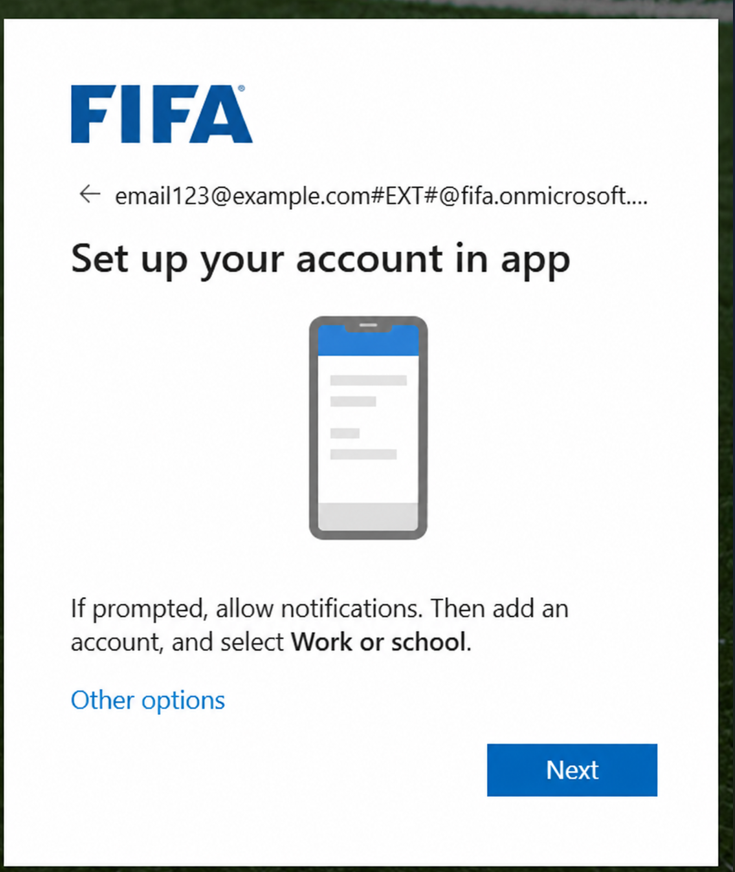
Open the Microsoft Authenticator app on your mobile device.
If prompted, allow notifications.
Add a new account and select Work or school account.
Return to the browser and select Next.
Step 8: Scan the QR code
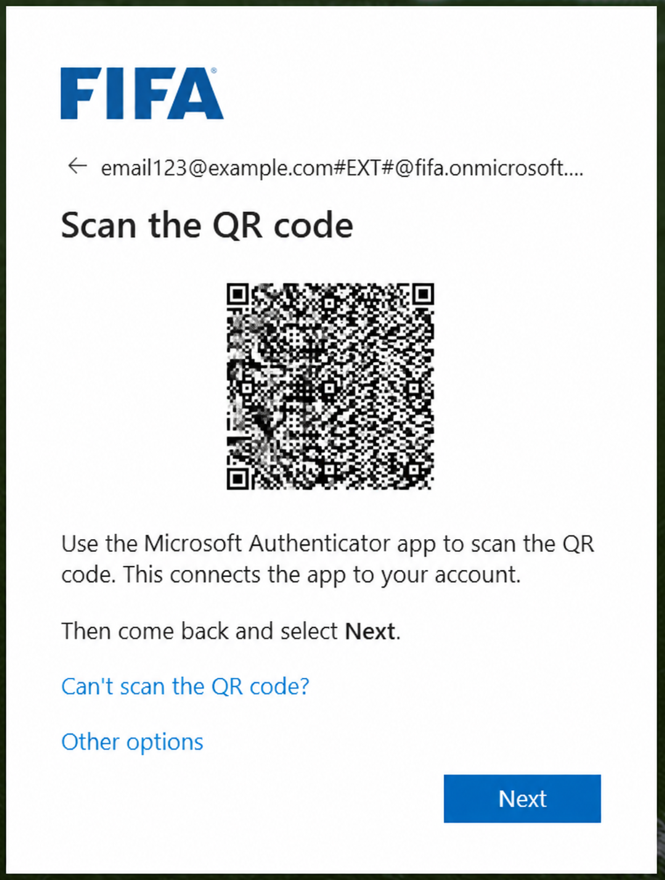
A QR code will be displayed on the screen.
In Microsoft Authenticator, use the option to scan a QR code and scan the code displayed in your browser.
Once the account has been added successfully, return to the browser and select Next.
Step 9: Complete the verification
Microsoft will test the connection between your account and Microsoft Authenticator.
A number will appear on your browser.
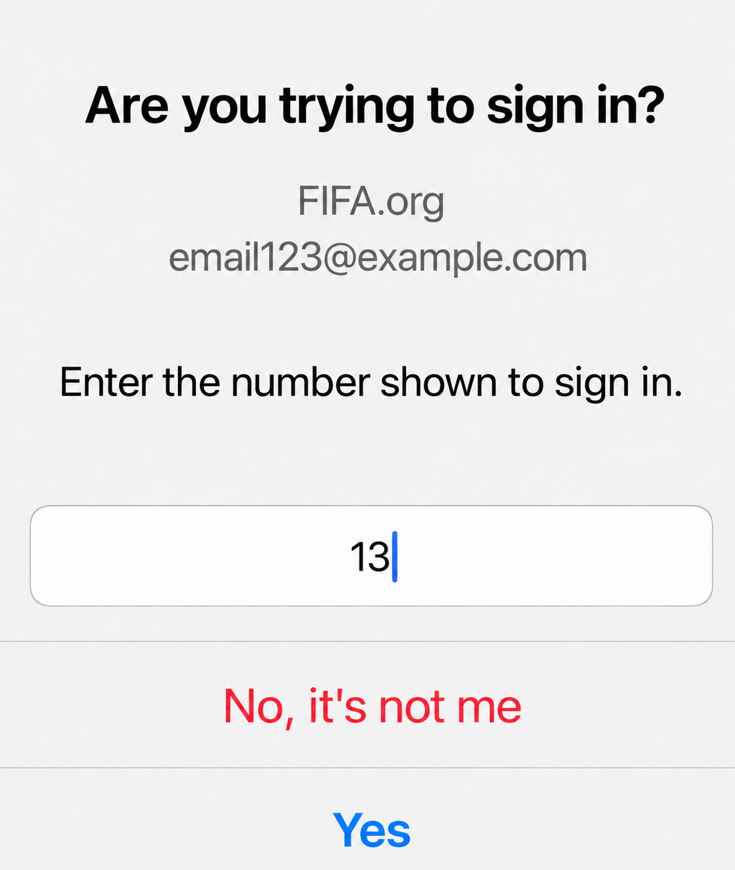
Open the notification in Microsoft Authenticator and enter the number shown on the screen to approve the sign-in request.
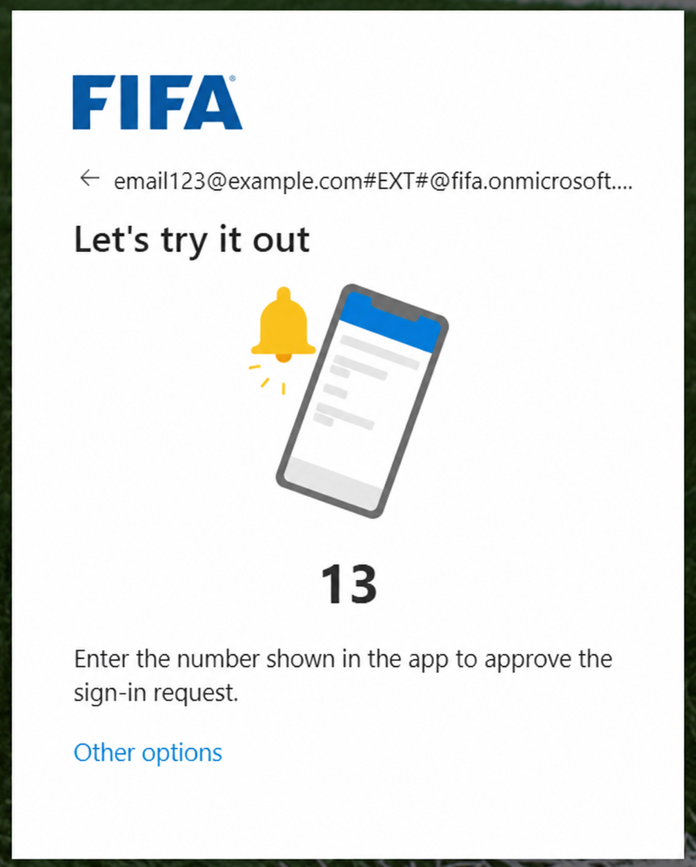
Once verification is completed successfully, you will be signed in to the FIFA Connect or FCMS website you originally accessed.
Enter the code in your Microsoft Authentication App and press Yes.
Step 10: Accept the Terms and Conditions
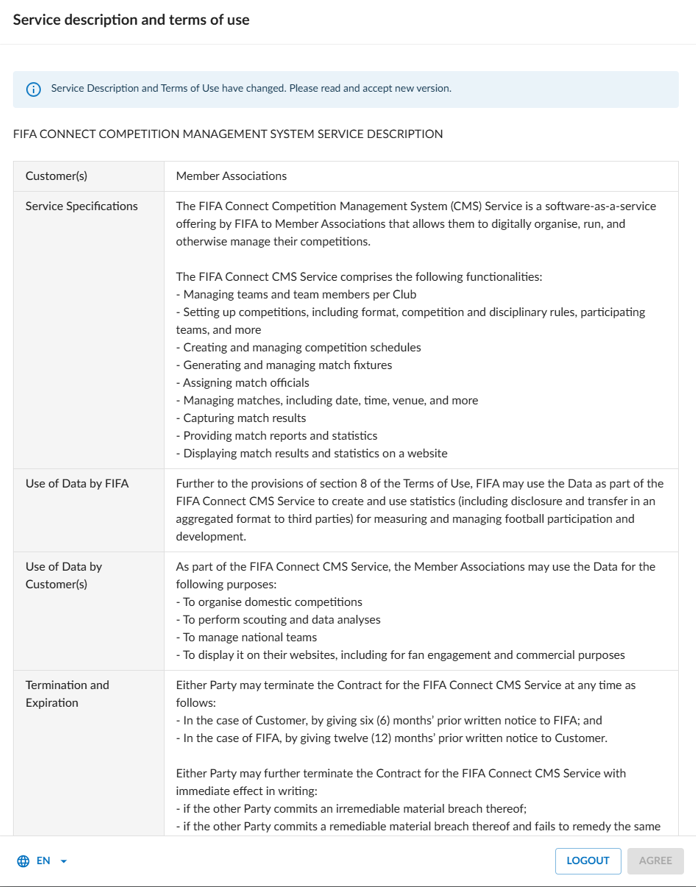
If you are accessing the system for the first time, you may be asked to review and accept the FIFA Connect or FCMS Service Description and Terms of Use.
Read the information provided and accept the Terms and Conditions to continue.
Note: The actual Terms and Conditions may differ from this screenshot example.
Step 11: Apply for the required roles
Once signed in, you can begin requesting the roles required for your responsibilities.
Your role requests will need to be reviewed and approved by your Member Association administrator before the relevant access is granted.
The screenshot below shows an example of the role request page in FCMS. If your Member Association only uses FIFA Connect, you will instead be redirected to the FIFA Connect platform.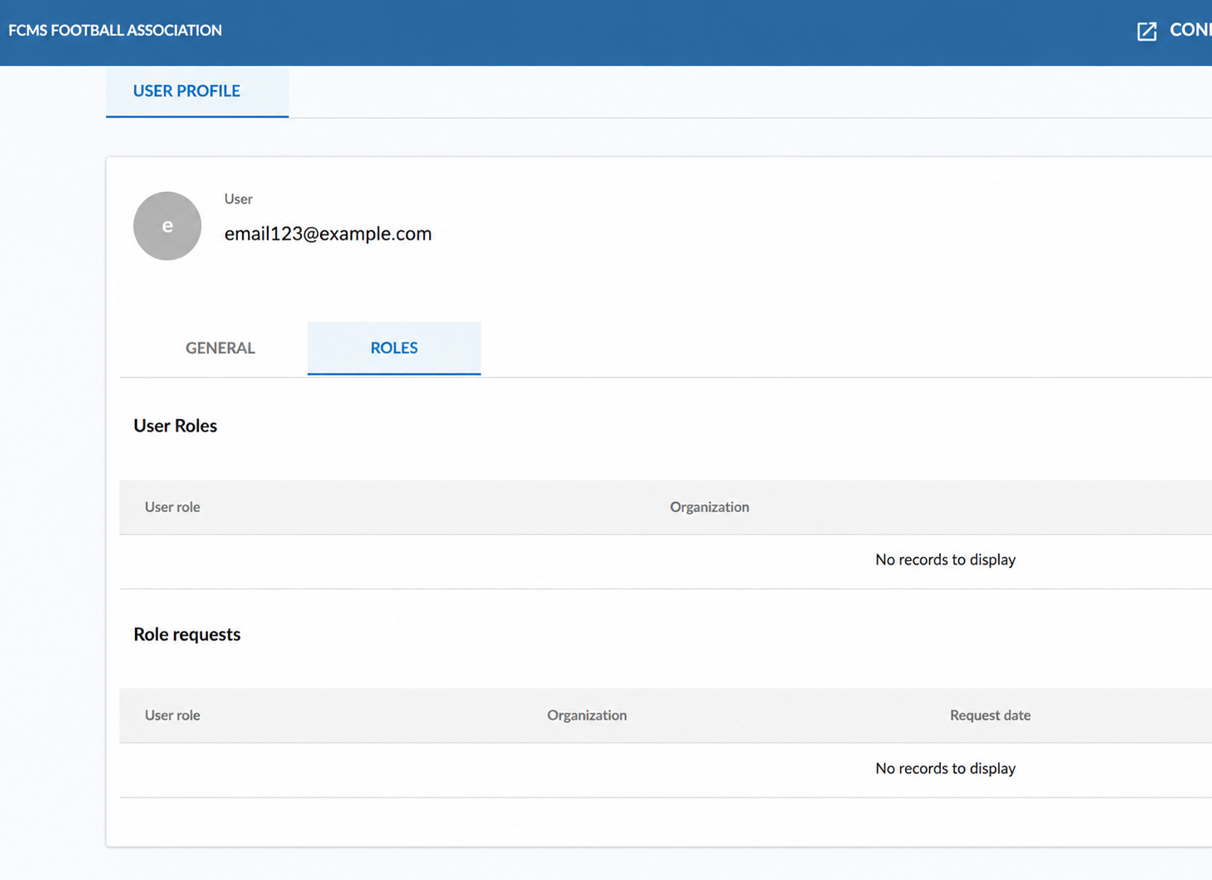
After your required roles have been approved by your Member Association, Regional Association, District Association or Club Administrator, you can begin using FIFA Connect or FCMS according to the permissions assigned to your account.
Need assistance?
If you experience any issues during account creation, SSO login or MFA setup, please provide your Member Association with a screenshot showing where the issue occurs.
If further assistance is required, your Member Association can contact FIFA Connect Support with the relevant details and screenshots.
Trouble Shooting
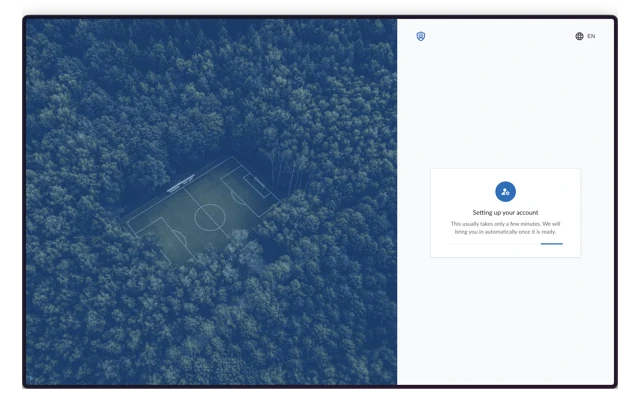
Whilst most users will experience a seamless and quick process for the creation of their account, there can be situations where some of the processing can take a little longer depending on the user's internet speed and location.
Therefore, a user may receive certain messages due to this.
For example, when an account is being setup after registration, if it takes longer than expected you may experience the below.
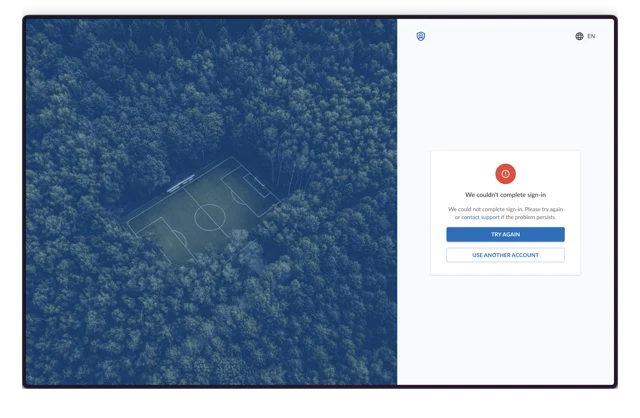
Secondly, you may have your account waiting to be set up, but an error message appears, here you have three options,
- Select to Try Again
- Contact Support
- Use Another Account
If you select to contact support, it will take you directly to the Support Portal where you can submit a new ticket.
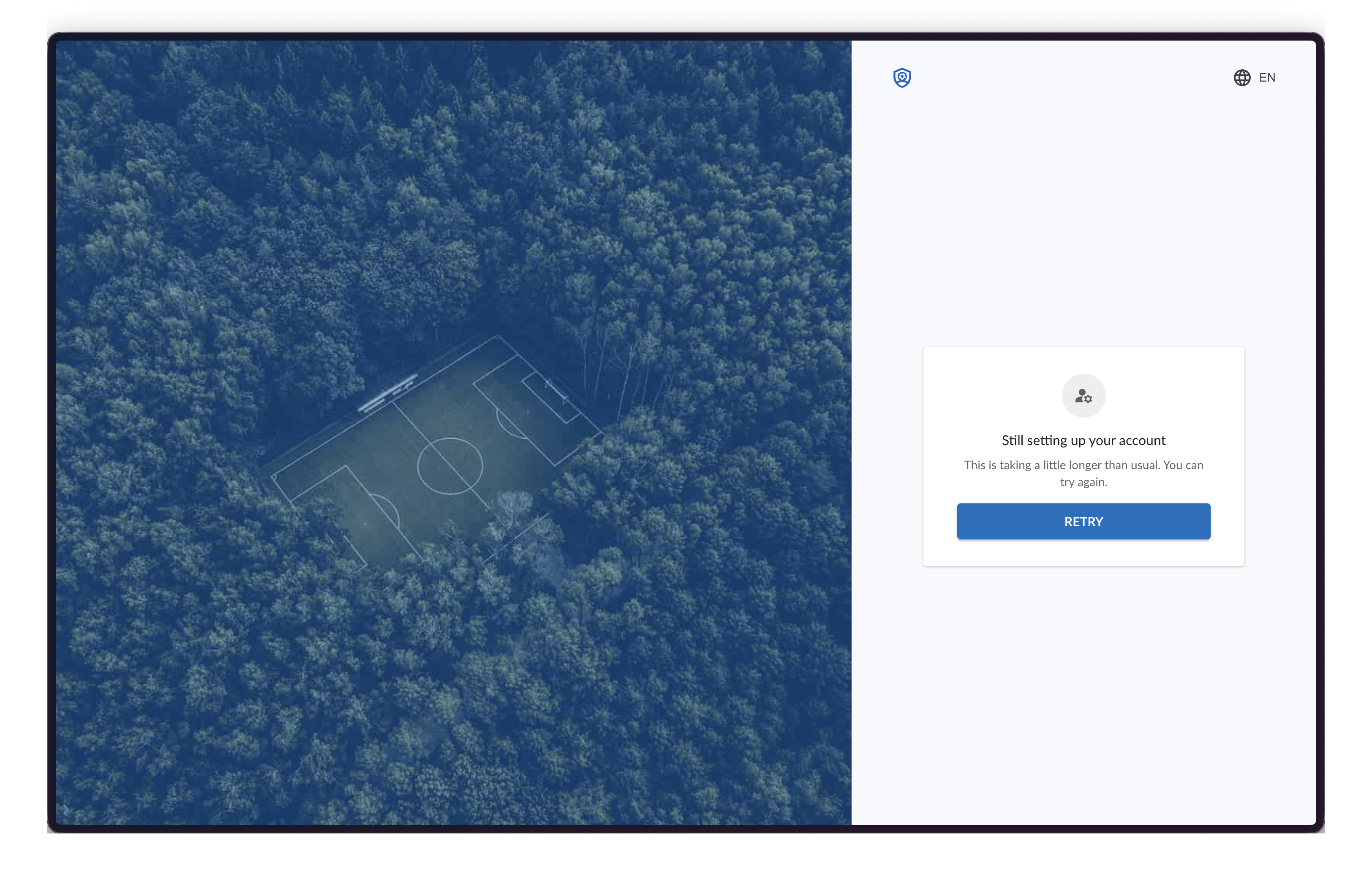
Once a user registers it should be seamless to have their account created, however if you experience a longer than expected process you may see the below screen where you can simply select to retry.
YouTube Video is also below