
This guide explains how new users in Syria and Cuba can create an account and access the FIFA Connect Platform using the new login powered by AWS Cognito. Follow the steps below to register your account, verify your email address and access the platform for the first time.
For users who already have an existing account or access to FIFA Connect or FCMS for Syria or Cuba, you will also need to follow the steps listed below.
The login process after completing the steps below is outlined at the bottom of this guide. The subsequent login process will be the same for all users once their accounts have been created.
Important: This guide is specifically for Member Associations in Syria and Cuba using the new AWS Cognito login process. Users from all other Member Associations should refer to the relevant Single Sign-On (SSO) guides below instead:
Step 1: Create an account
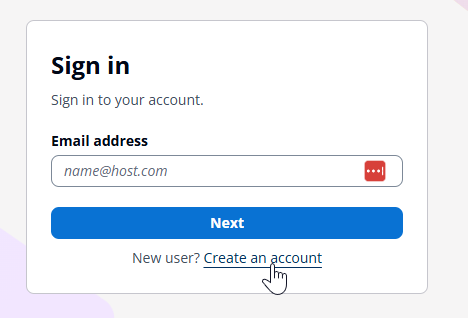
Open the FIFA Connect or FCMS website provided by your Member Association.
Select Create an account.
Step 2: Enter your details
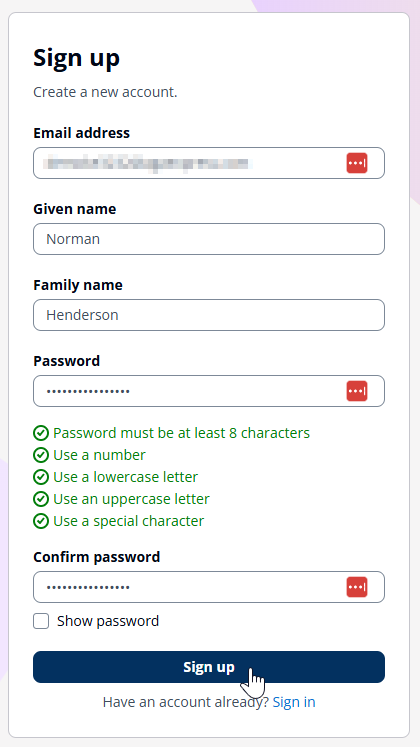
On the sign-up page, complete the required fields:
Email address: Enter the email address you want to use to sign in.
Given name: Enter your first name.
Family name: Enter your surname.
Password: Create a password that meets all the displayed requirements.
Confirm password: Enter the same password again.
Your password must meet the following requirements:
At least 8 characters
At least one number
At least one lowercase letter
At least one uppercase letter
At least one special character
Check that your details are correct, then select Sign up.
Note: You only need to create a password during the initial account creation process. You will not need to enter your password when signing in subsequently. Keep your password for account recovery purposes.
Step 3: Receive your email verification code
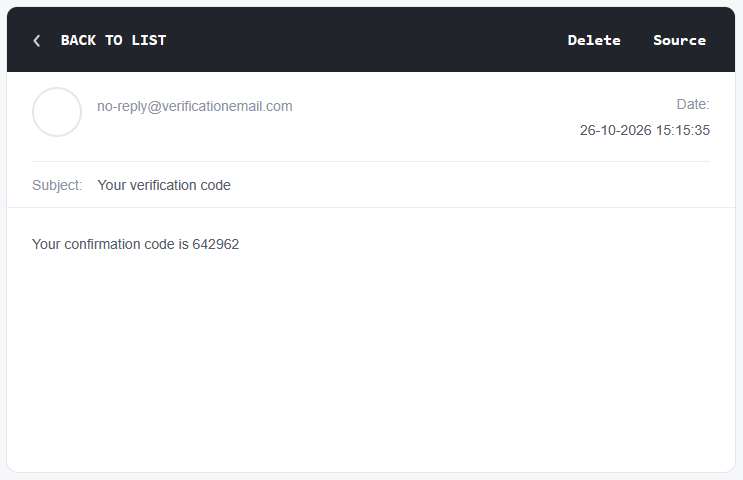
After submitting the sign-up form, check the email inbox for the email address you registered.
Look for an email with the subject Your verification code, sent by no-reply@verificationemail.com.
Open the email and locate the confirmation code.
If you cannot find the email, check your spam or junk folder.
Step 4: Confirm your account
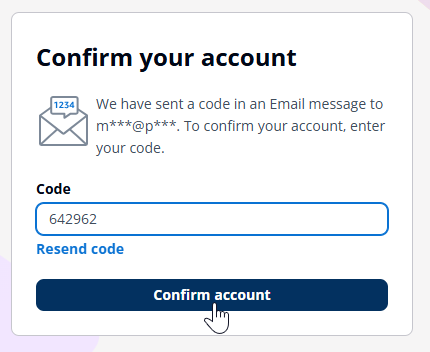
Return to the FIFA Connect Platform and enter the verification code from your email into the Code field.
Select Confirm account to complete the email verification process.
If you did not receive the code or it has expired, select Resend code if this option is available.
Step 5: Accept the Terms and Conditions
After your account has been confirmed and you have signed in, you may see a similar Terms and Conditions Update window in either FIFA Connect or FCMS.
Read the information provided, including the Terms of Use of FIFA Services and the Service Description.
If you are authorised to accept these terms on behalf of your organisation, select Agree to continue.

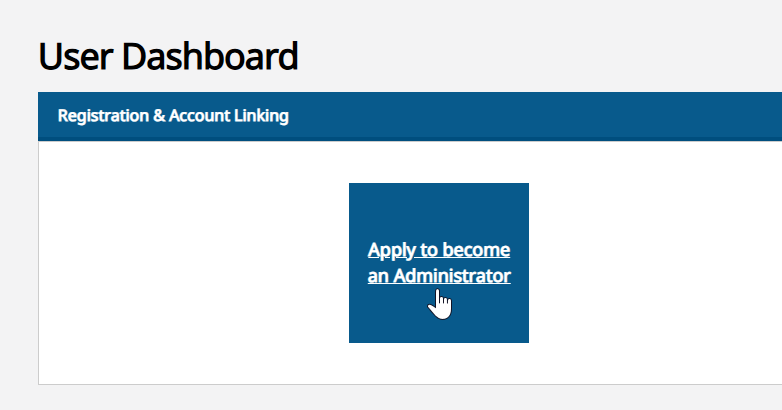
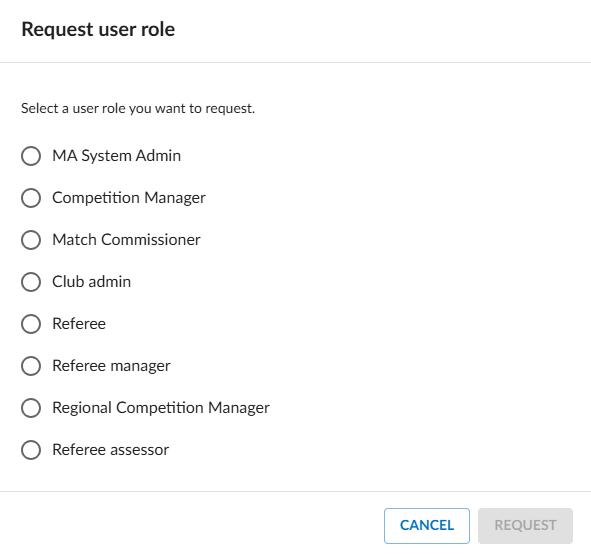
Step 6: Apply for the required roles
Once signed in, you can begin requesting the FIFA Connect or FCMS admin roles required for your responsibilities.
Your role requests must be reviewed and approved by your Member Association administrator before the relevant access is granted.
If your roles have already been approved, or if you are an existing user with approved roles, you can start using the platform immediately.
FIFA CONNECT
FCMS
Step 7: Subsequent Logins
Once you have successfully created and verified your account, you can sign in to FIFA Connect or FCMS using your registered email address and a One-Time Password (OTP).
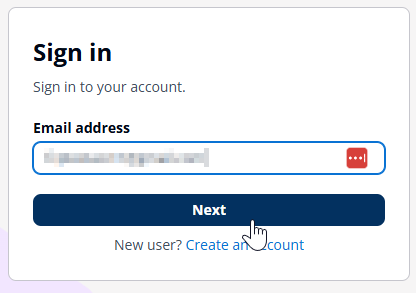
7.1 Open the FIFA Connect or FCMS website
Open the FIFA Connect or FCMS website and enter your registered email address on the sign-in page.
7.2 Enter your OTP
After entering your email address, enter the OTP received in your email like before, into the verification field to complete the sign-in process.
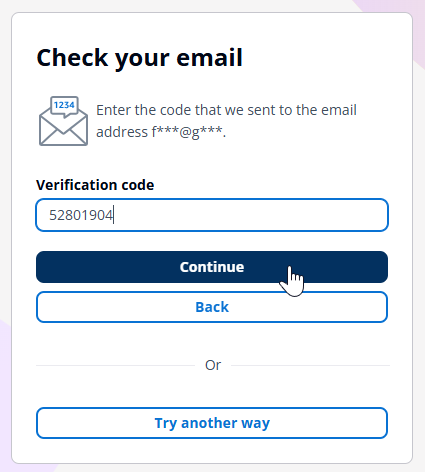
7.3 Sign-in process completed
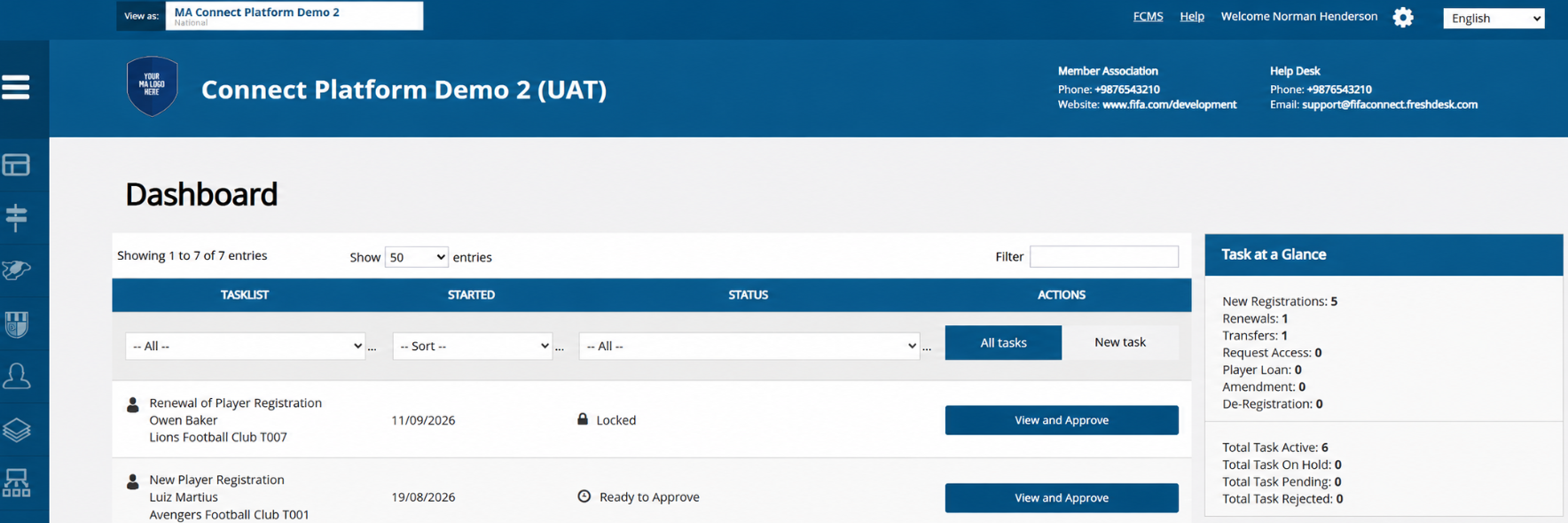
Once successfully authenticated, you will be redirected to the FIFA Connect or FCMS dashboard.
 You do not need to enter your password for subsequent logins. Simply use your registered email address and the OTP sent to your email.
Need assistance?
If you encounter any issues while creating your account or signing in, take a screenshot of the error message or the page where the issue occurs.
Contact your Member Association for assistance. If further support is required, your Member Association can contact FIFA Connect Support and provide the relevant details and screenshots.